When move to Zorin Linux from Windows, some aspects of the Desktop behave in ways which I did not expect. Creating Desktop icons to launch .sh scripts for example, was not implicit. I expected to create a file somewhere in my userspace, chmod +x that file to make it executable and then “ln” link a file from the Desktop folder to point to the shell program and done… Nope, that’s not how it works. The correct method is outlined below.
Windows comparison
Compare to Windows, launch icons are created on the Desktop by right-mouse-button dragging and dropping a file onto the desktop, the system prompts for copy/move/create shortcut. That “create shortcut” is the winner and immediately you get an icon on the desktop which is a shortcut to the file you started with, and if that file is an .exe, you’ll also get an auto-populated icon. Linux, some more steps.
Zorin Linux Method
Execution environment for this example is Zorin Linux version 18.1. Here, create the bash script in a .sh file somewhere in your home space. For this example, I put it in .local/bin and named the shell script “example.sh” so it would be in the path if I type the name of the shell program in a terminal window.
Step 1: Store the shell script somewhere and make it executable. The pre-installed Text Editor works good for this. Add this contents to the file, save “example.sh” in anywhere writeable or to follow along with this post, place the file in ~/.local/bin/example.sh (home / .local / bin). Note that using this directory makes it a bit harder to get along as “.local”, like a “dot” files is hidden, so you have to type it to get there. Contents of the file:
#!/bin/bash
echo "Hello World"
sleep 3
In a terminal, need to make this file executable, yes, even shell files have to be expressly marked executable. Here are the steps.
# start a terminal
cd ~/.local/bin
chmod +x example.sh
./example.sh (runs the script)
Next up, create a Desktop icon to launch the script.
# Text Editor again, file contents:
[Desktop Entry]
Type=Application
Name=Example and Spaces are Allowed
Exec=gnome-terminal -- /home/[your username here]/.local/bin/example.sh
Terminal=true
( Save to Desktop and call it Shortcut.desktop )
Notice that using ~ for “home” does not work inside the .desktop file. You must fully qualify the path to the shell script which will be executed. Also notice that on the save, the name of the file doesn’t really matter as by the end, it won’t be shown anyway. The extension however is critical and must be “.desktop” and must be lowercase. For this example, the file is named Shortcut.desktop. Once save the Shortcut file, go back to the terminal window and make the shortcut “executable”.
cd ~/Desktop
chmod +x Shortcut.desktop
Amost there. Observe that the file is created, but has the name of the true file on disk and has a red-x on it saying something is incomplete.
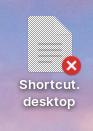
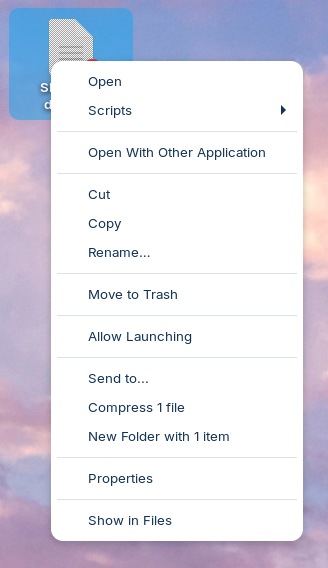
The last step is to tell the shell that the Shortcut file is indeed a Shortcut file and it is approved for launching whatever it points to. Find the Shortcut file on the desktop, Right mouse button, and select the “Allow Launching” item.
Success
With the click of “Allow Launching”, the Shortcut.desktop file will rename on the UI to become the name indicated inside the .desktop file. You can also add an “Icon” line to the .desktop file to select an icon for the shortcut.
If useful or for comments, let me know in the comments – but really comment and send an email to joe at this domain as I have comments blocked until they are proven to not be spam.
Joe